Sync teams from Okta with SCIM
Last updated: November 9, 2026
Push Okta groups to create or maintain teams in Consensus Live. Configure SCIM provisioning with the Saleo Okta app first.
Push a group from Okta
Open the Saleo application in your Okta Admin Dashboard.
Open Push Groups.
Use Push Groups to find a group by name or rule.
Choose whether to push memberships immediately.
Select Create Group to create a new team, or Link Group to match an existing team.
Review the group and destination, then save.
Verify the team in Consensus Live
Sign in to the web portal as an admin.
Open Settings → Company Settings.
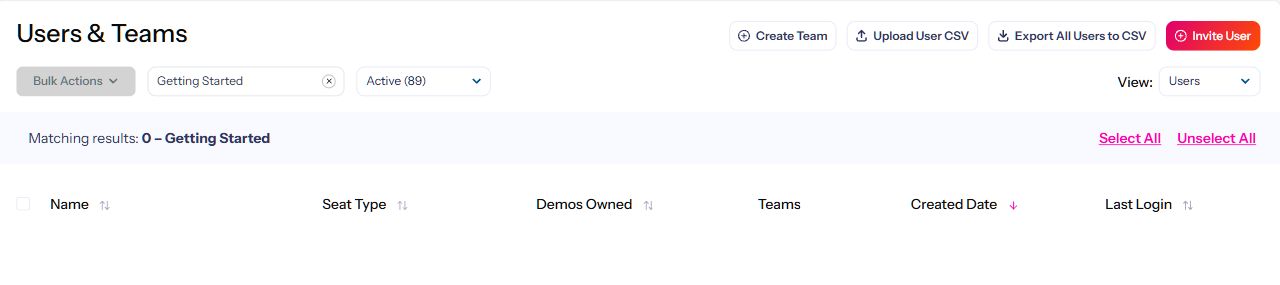
In Users & Teams, switch View to Teams.
Confirm the team and its membership match the intended Okta group.
Link an existing team
Match the Okta group name to the existing team name before linking. Names are not case-sensitive, but the characters must otherwise match. Confirm the target carefully before pushing memberships.
Manage membership in Okta
This is a one-way sync from Okta into Consensus Live. Changes made in the web portal do not push back to Okta. Keep Okta as the source of truth for SCIM-managed users and teams.
Provisioned users remain subject to your organization’s available seats. Contact your Customer Success Manager or Support if provisioning or membership does not match the expected result.