How to Use Text Tokens in Table Designer
Last updated: November 17, 2026
In Table Designer, you can also easily add tokens as replacement values for any table column that accepts a string text value.
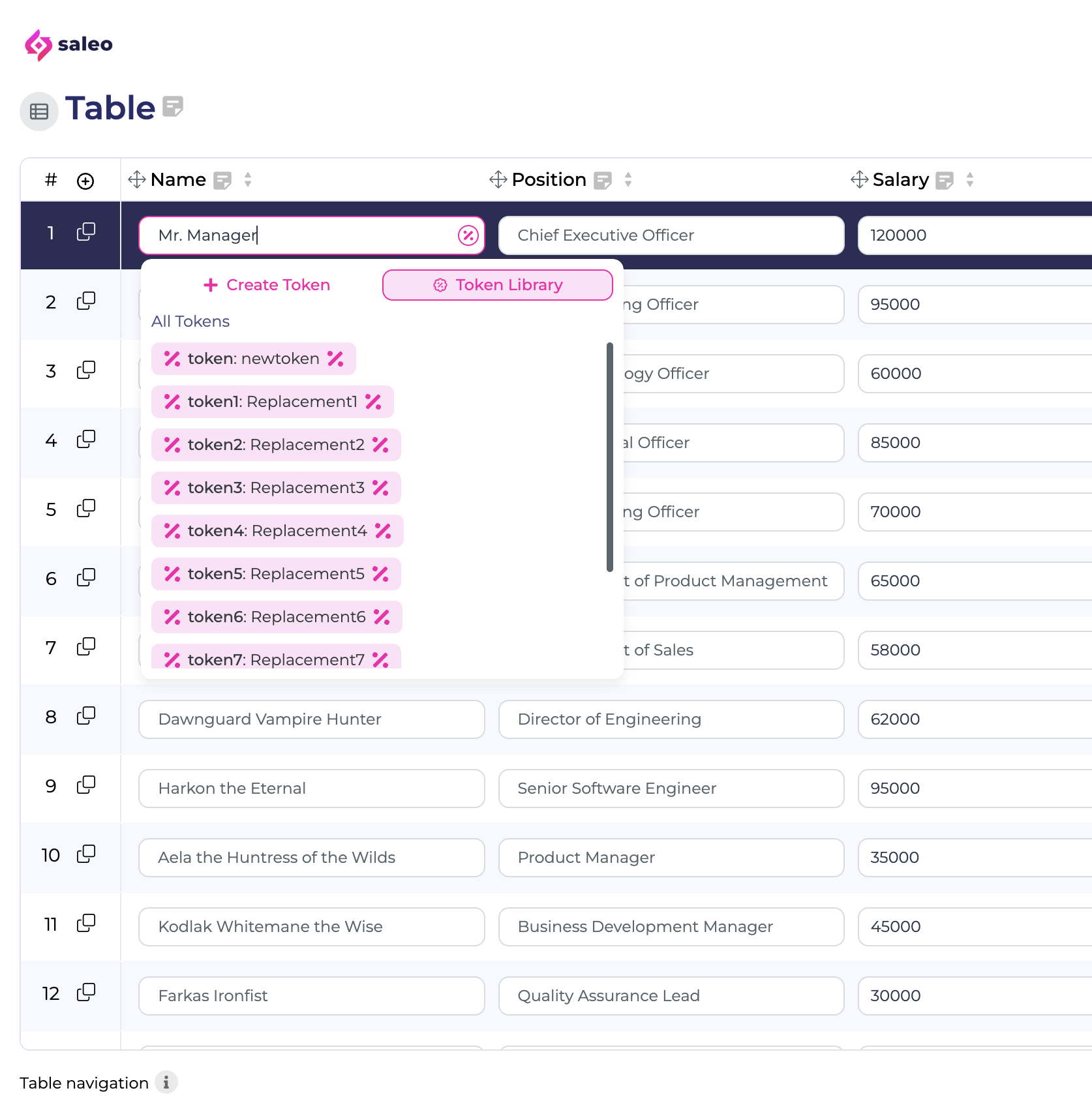
In any text field, select the token icon or type a percent symbol to bring up your list of tokens. Here, you can select tokens or create new ones just as you can in the manual text replacements for pages. Select the token icon at the top right of table designer to toggle between displaying token names and replacement values in this table.
Note that you can only use tokens to replace columns that are string text i.e. a free input form. Tokens are not usable on other inputs such as numerical, picker, multi-select, or date pickers.
For more information on Table Designer, see this article: 📄 Overview of the Saleo Table Designer
Examples of Token Usage
Tokens can replace ANY text value in your entire demo. They are incredibly flexible and you can use them in endless ways. Here, we will detail some examples to inspire you!
You have a table in your product that will show sales data regarding the top 3 customer prospects in your customer's industry. Using tokens, you can adjust the names of these companies depending on the industry of your prospect.
Company Name | Industry | Sales Value |
|
| $3,000,000 |
|
| $2,700,000 |
|
| $1,800,000 |
If your tokens are set as we see here, you can easily customize the table data before your demo. You can edit the industry shown and plug in the three company names to dynamically update! This update will also apply to everywhere in your demo that uses these tokens. So in this case, you can tell a story about how your product can target %company2% in every possible vertical.
Company Name | Region | Deal Value |
|
| $1,000,000 |
|
| $2,000,000 |
|
| $3,000,000 |
If you are demoing to a prospect who targets Japanese companies, you can specify the %region% token as Japan, and so on.
Added Touches for Personalization
Add a personal touch to your demo for the company and person who sees it! If your product features a splash page or welcome screen, try using tokens like this.
Hello
%username%from%prospect-name%!
becomes...
Hello Jack Shepard from Dharma Initiative!